Adobe Acrobat × Express
Edit image in Acrobat
Designing across ambiguity, emerging AI tools and organizational complexity — how one feature scales into a system.
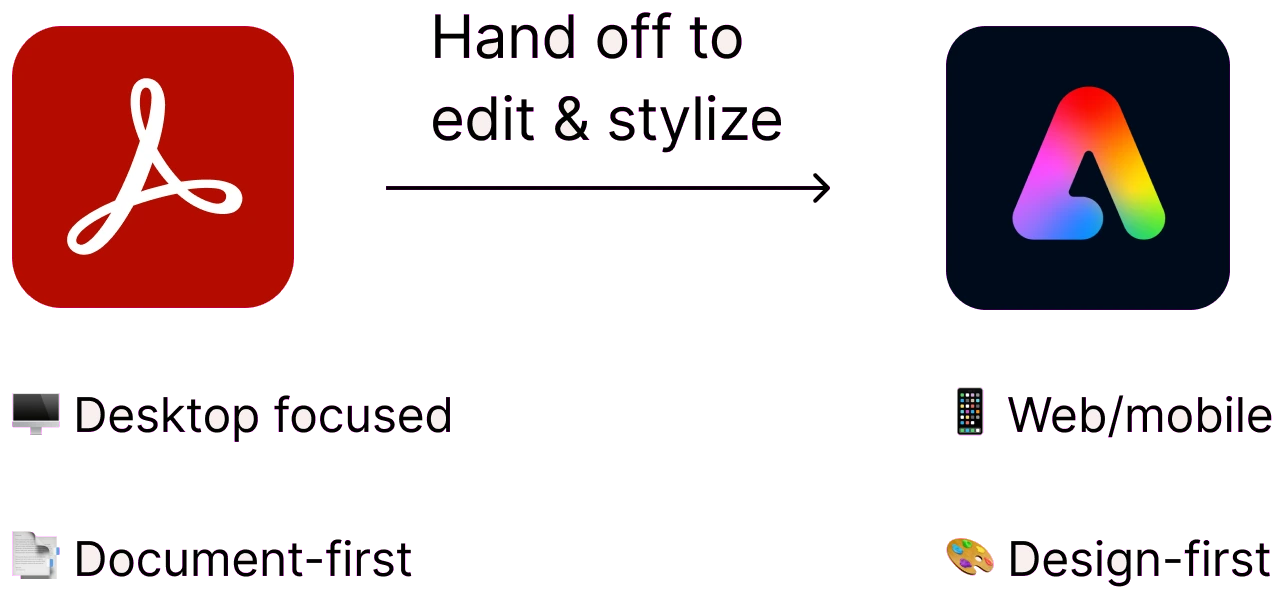
Acrobat is desktop-focused and document-first. Adobe Express is web and mobile, and design-first. The ask was simple: when someone wants to edit an image in a PDF, send them to Express. Getting there meant designing across three layers at once — the technology, the process and the experience.
- MAU growth
- 10×
- MAU increase in the Acrobat Chrome extension
- 1.5×
- export rate within 2 weeks of the accessibility update
- +4%
Context
The ask was simple: send people to Express
Market context: Express had only just shipped a dedicated, Firefly-powered web and mobile experience in 2024, years after its 2021–22 rebrand. Canva, meanwhile, had turned its free plan into pandemic-era hypergrowth, reaching ~135M monthly users by 2023. Express needed distribution, fast — and Acrobat’s install base was the fastest lever available.
#1 Tech layer
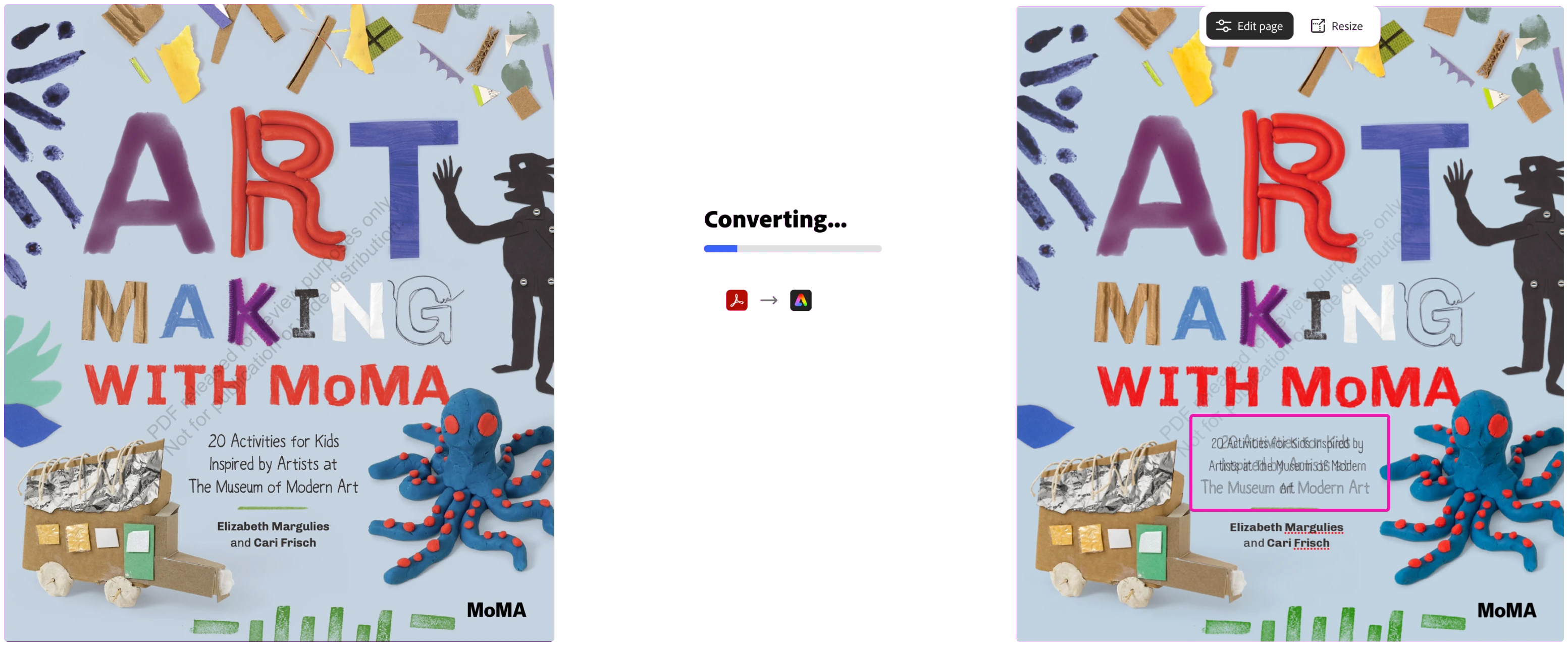
But the hand-off broke the document
#1 Tech layer
Understanding the use cases with user research
Why might Acrobat users need to edit images in their PDFs? Acrobat users are diverse, and so are their image-editing use cases. The common theme: they’re editing images in a PDF that
- they have shared for review,
- they’re adapting from a previous document, or
- they received as a PDF and need to edit.
- PDFs opened per year
- 400B+
- documents edited
- 16B
- of documents contain an image
- ~20%
Qualitatively, we baselined how people used competitors to edit images before converting back to PDF.
#1 Tech layer
Two products, two backends. One broken workflow.
The real issue wasn’t discoverability or polish — it was architectural. Every hand-off between Acrobat and Express was a chance to lose fidelity.
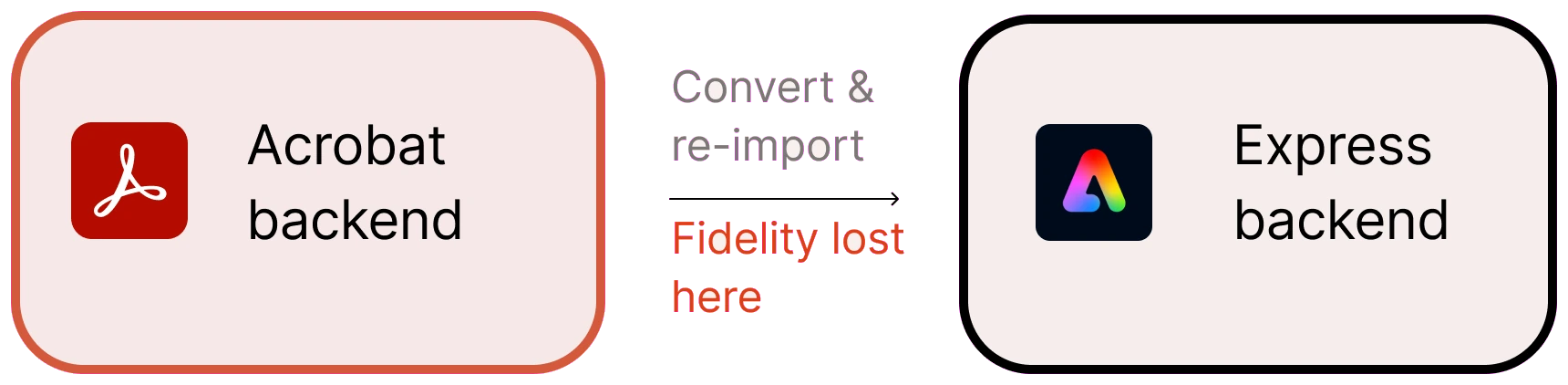
How I navigate complex tech and workflow constraints: with a deep understanding of how it works, and of the use cases.
#1 Tech layer
Bring Express to Acrobat, not Acrobat to Express
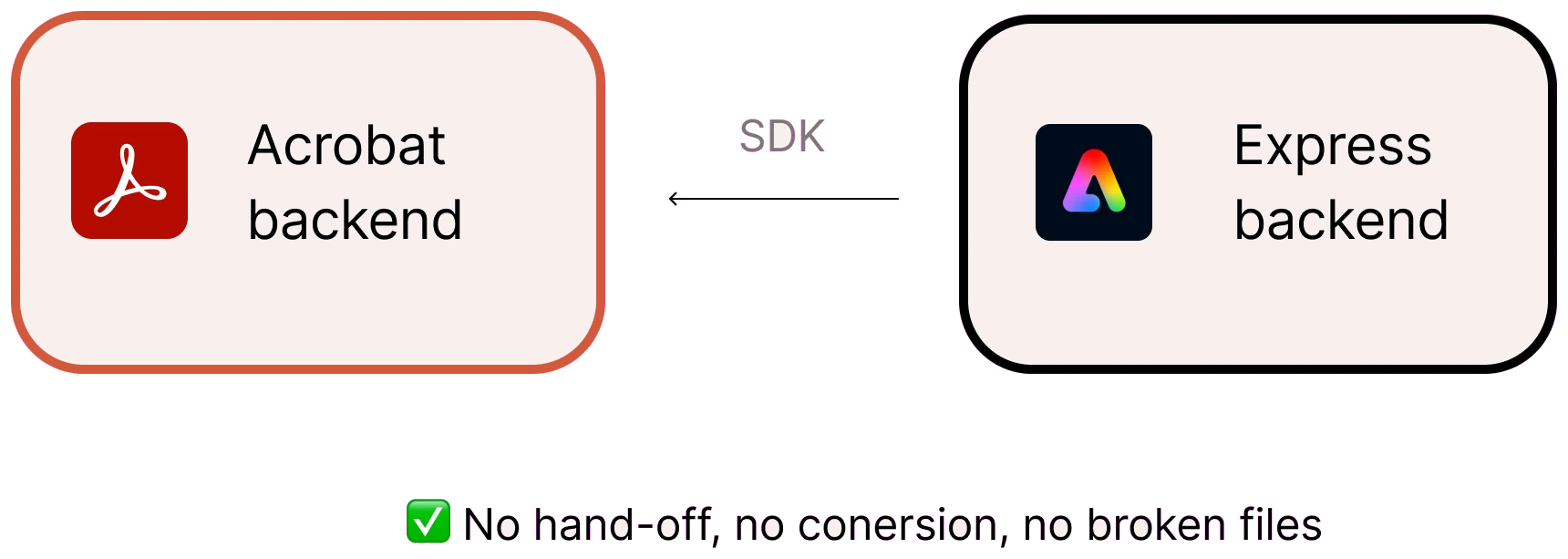
The MVP: wrap Express’s most valuable, most-used tools as an SDK, embedded directly inside Acrobat. No export. No re-import. No broken files.
#2 Process & experience layers
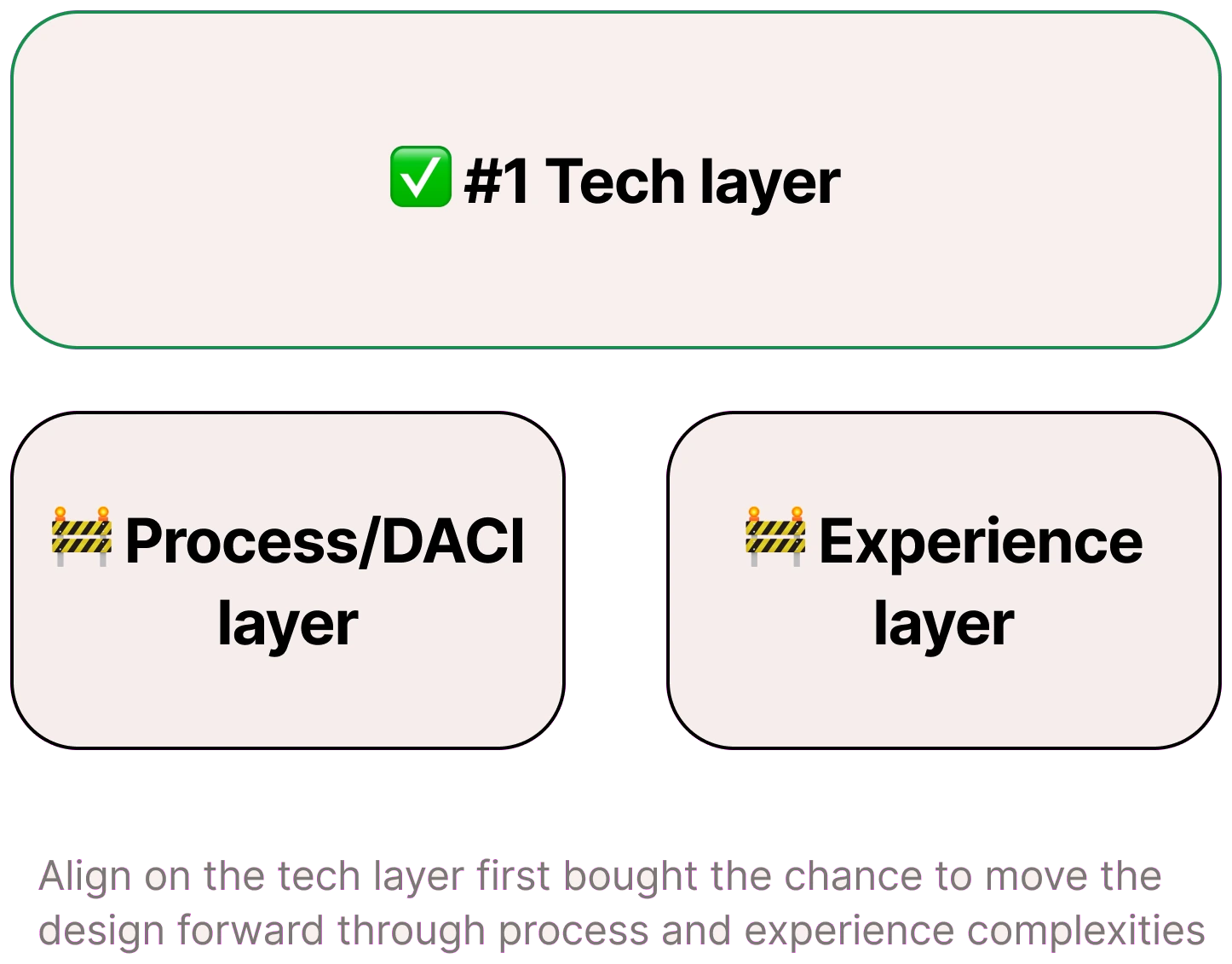
Three layers, one crowded canvas
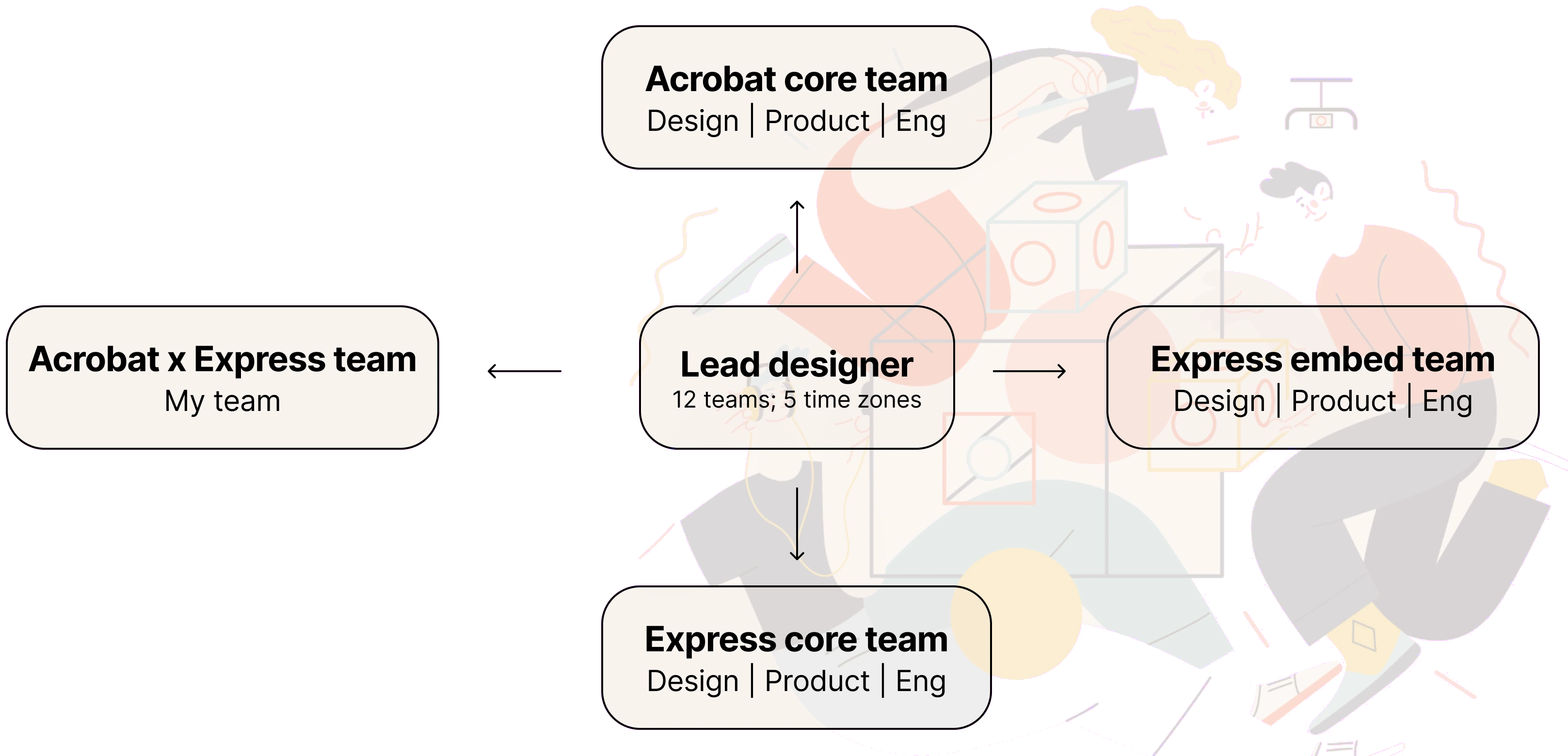
I started from understanding the tech layer, while grounding the experience in real use cases through close collaboration with partners across Acrobat and Express. As the lead designer, my job was to connect the three layers and keep iterating on the design process, so we evolved together toward a seamless end-to-end experience.
Discover
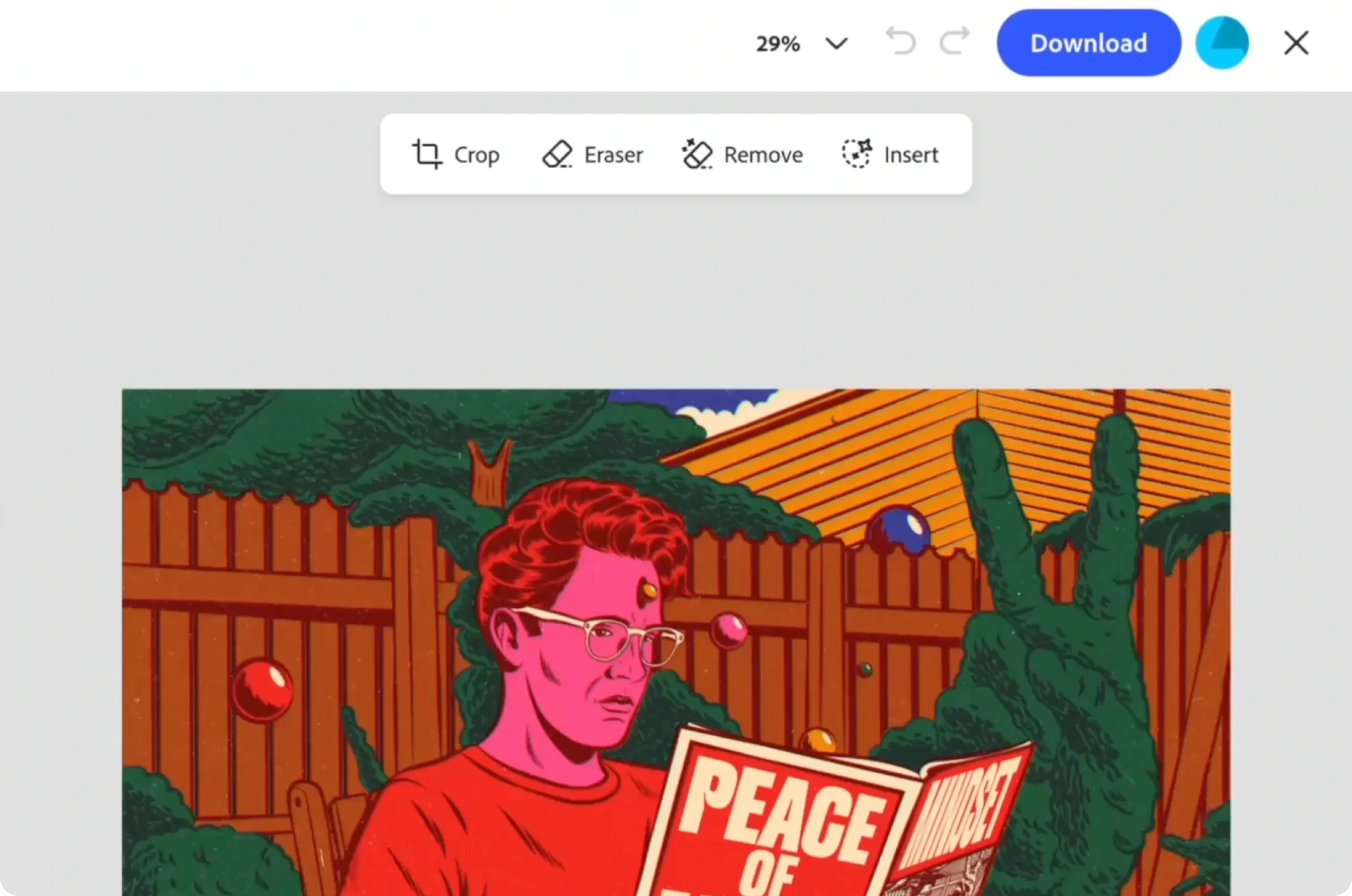
Entry point: Acrobat was already crowded
Most people came to Acrobat only to view or sign a PDF. The first placement was buried under “Add image” and a right-click menu. Result: the tool existed, but almost nobody found it.
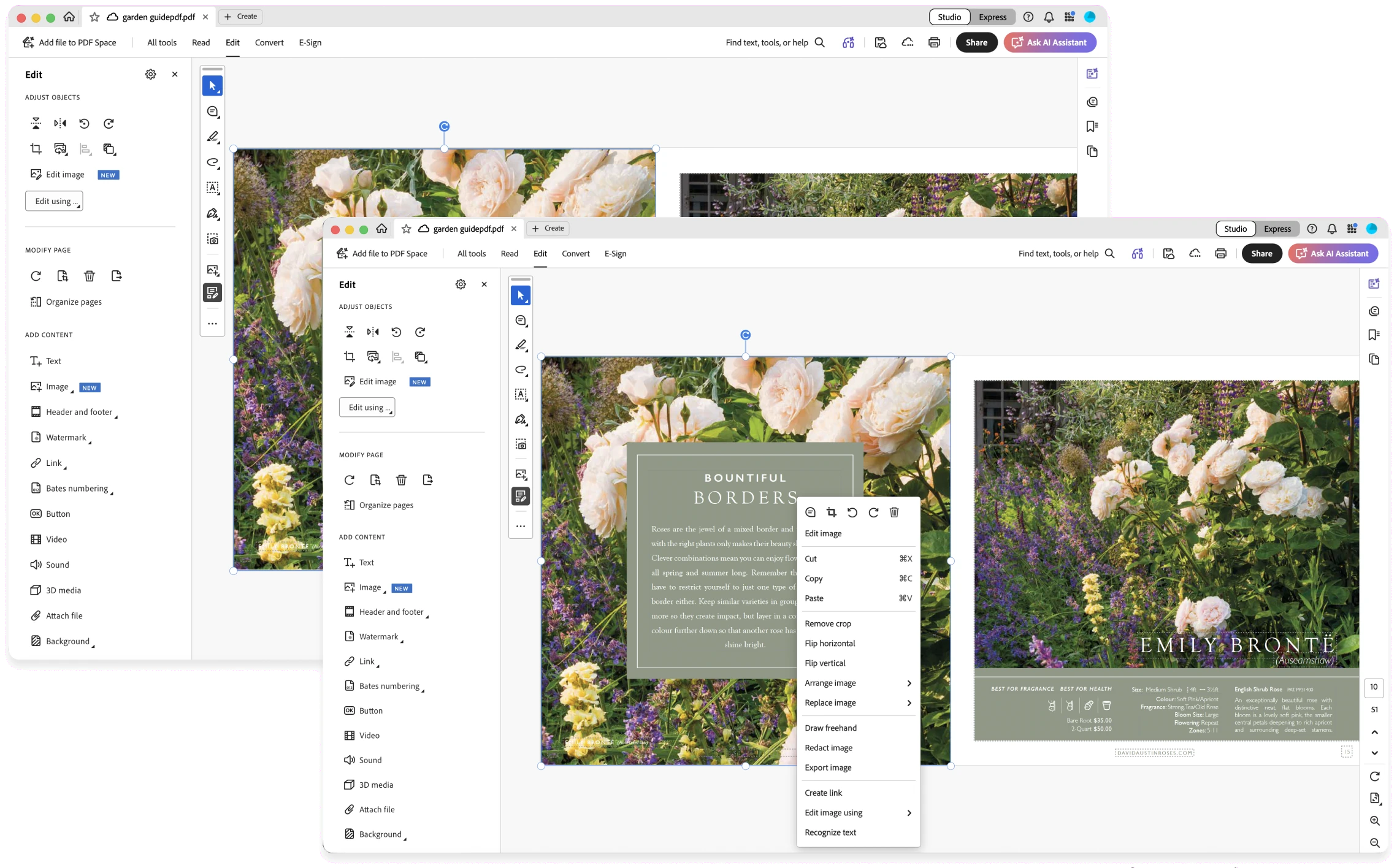
People naturally select the image they want to edit
Solution: I moved the entry point to the moment of image selection — contextual and in-flow. Result: it became the primary traffic source for the feature.
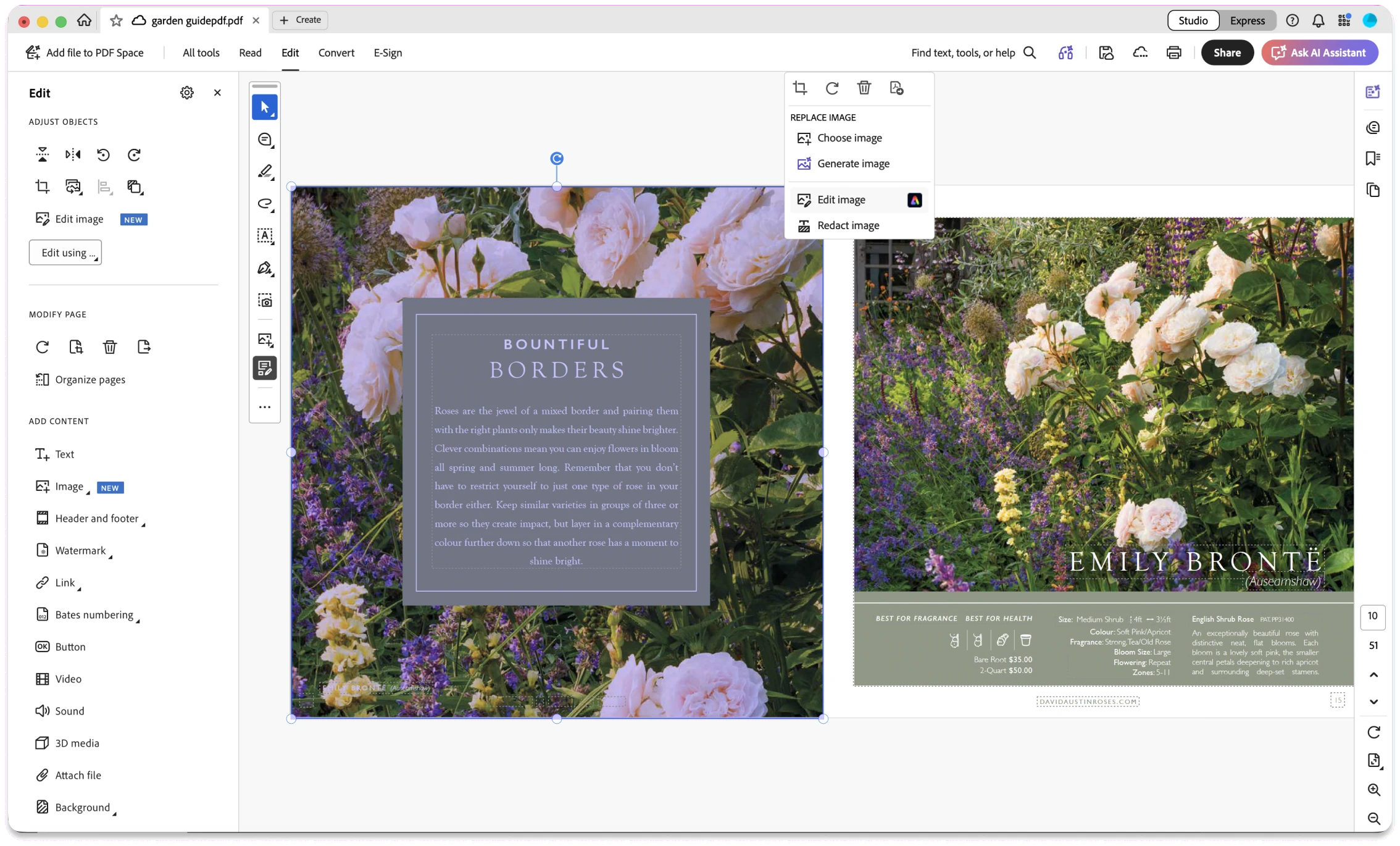
Edit
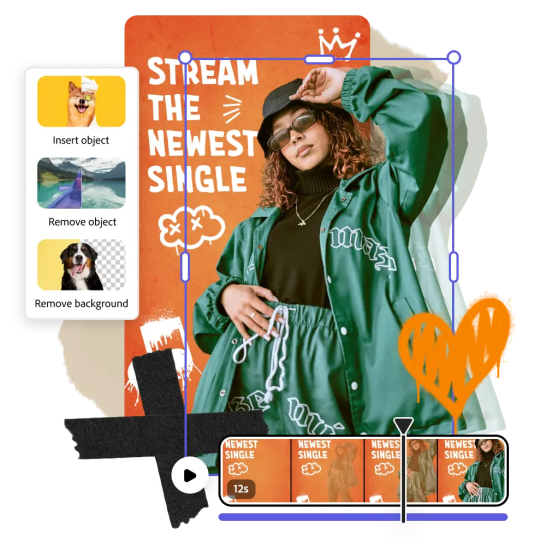
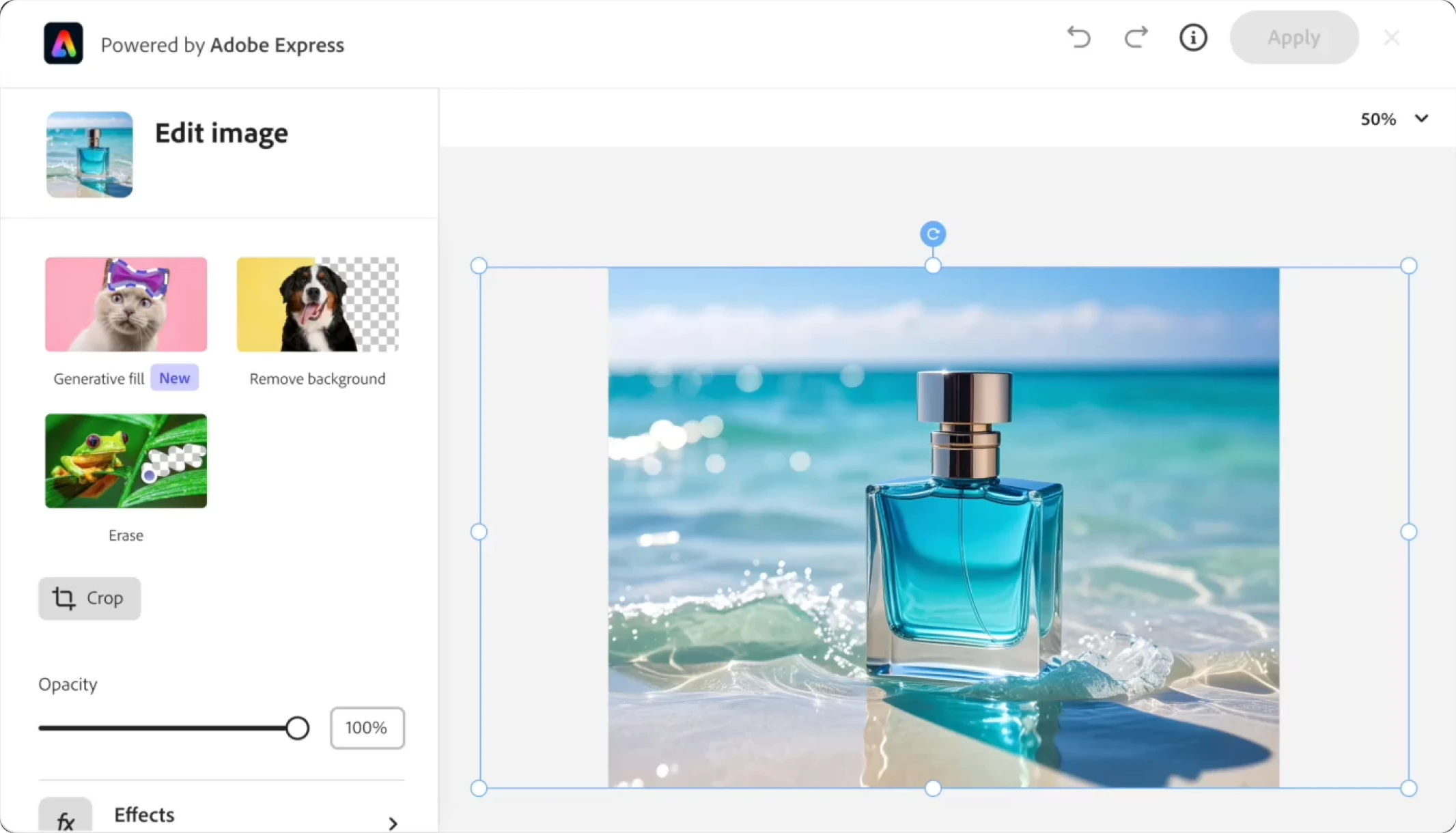
Challenge #1: Acrobat users don't know what to do with a brush 🖌️
Remove object and Generative fill both relied on a brush to pick out an area first — not a familiar concept for non-designers.
- Generative fill is confusing to Acrobat users.
- Business professionals are not confident in their design skills.
- Acrobat users are not familiar with the concept of a brush.
- Writing prompts to visualize things is challenging for Acrobat users.
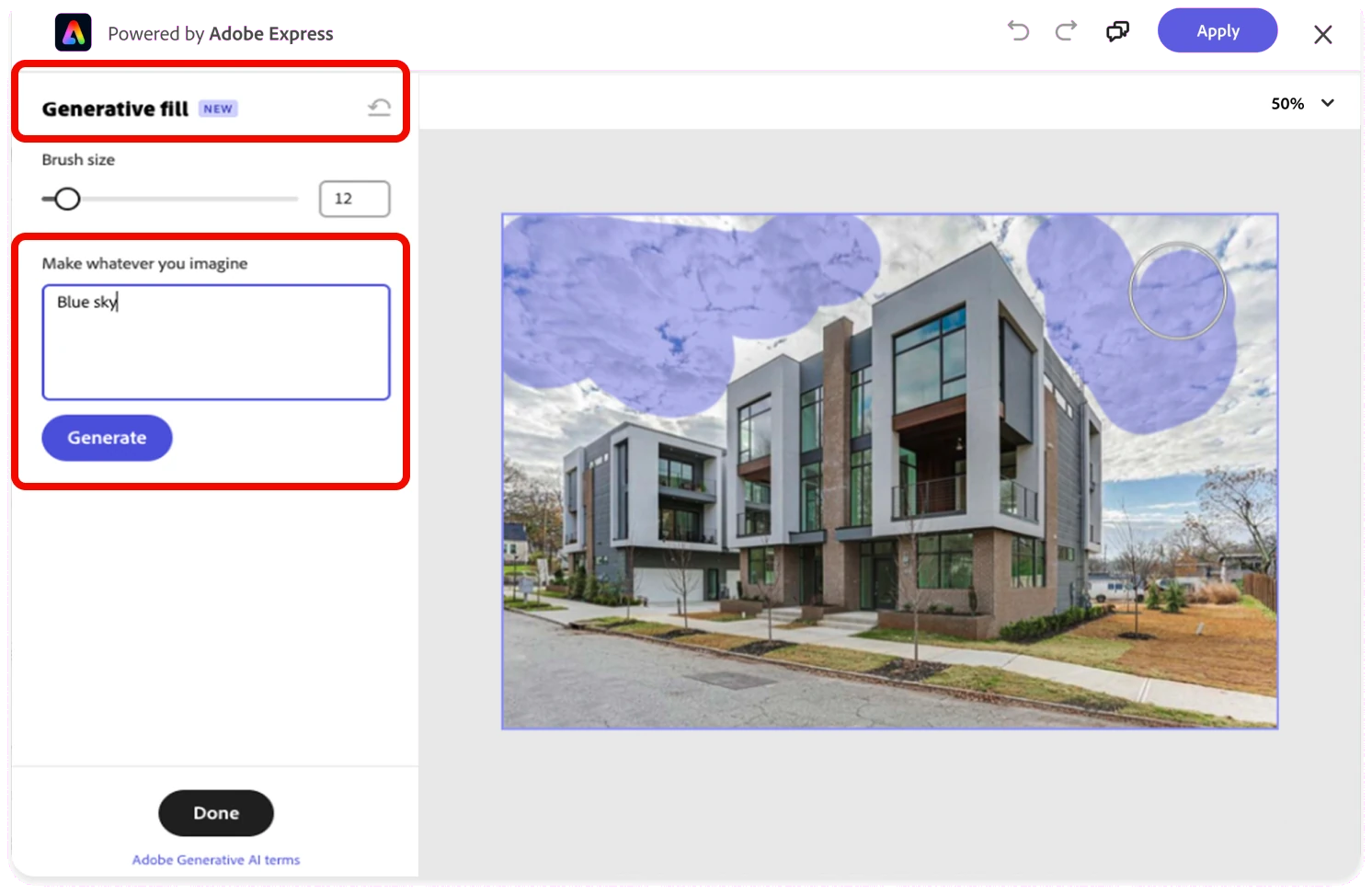
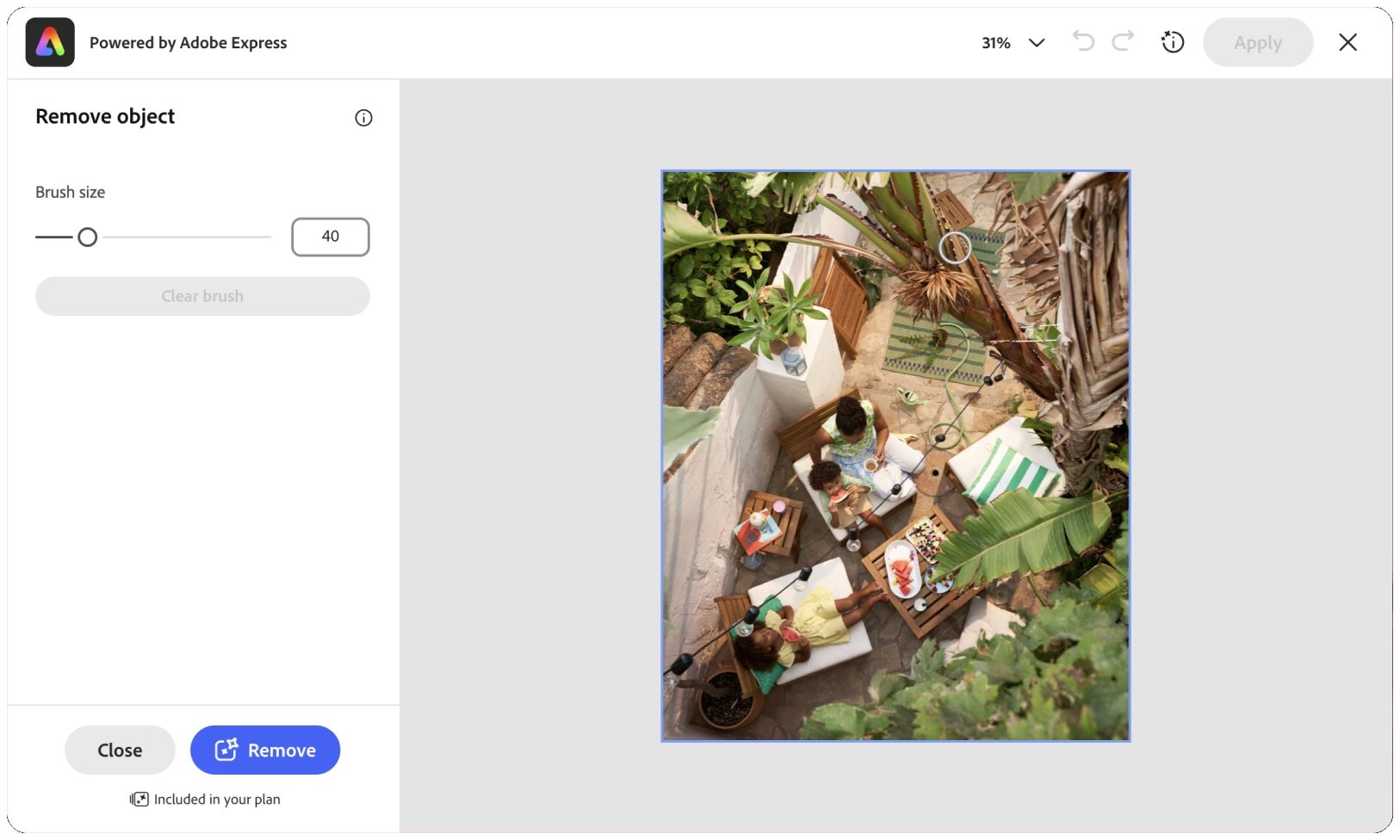
What changed:
- Split one tool into two that better match use cases: Remove object and Insert object.
- Updated the copy to match users’ expectations.
- Removed the prompt field from Remove object to reduce complexity.
Edit
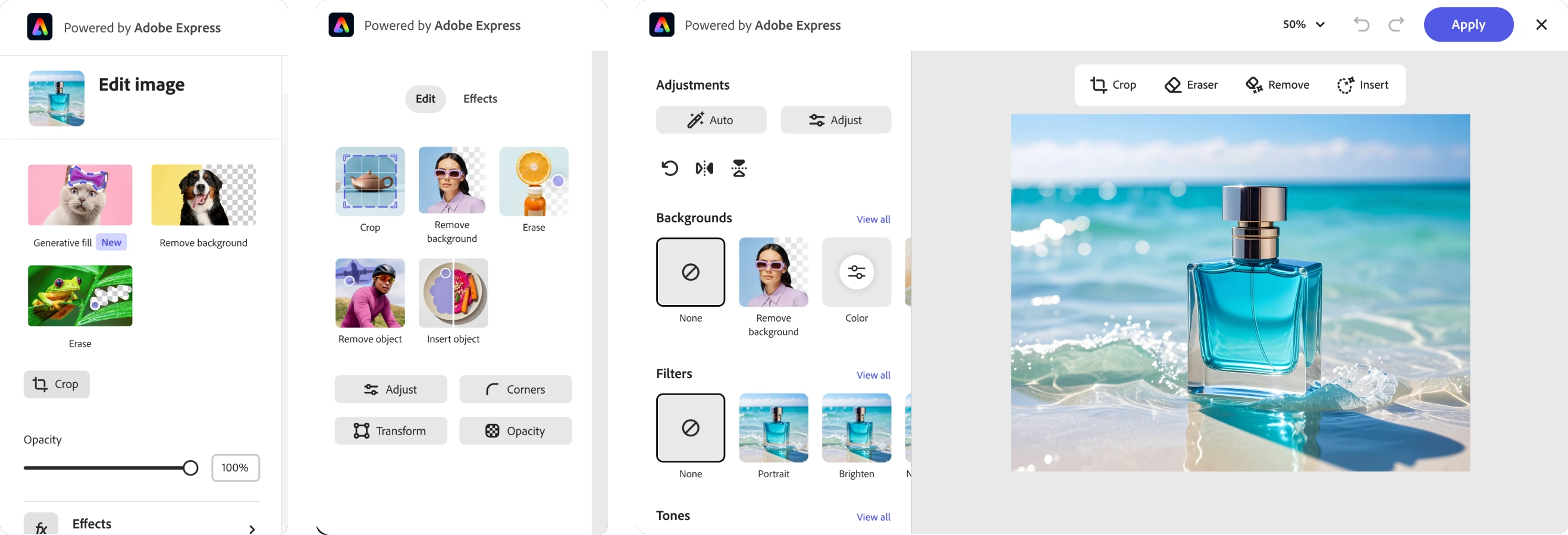
Challenge #2: Reorder the image editing tools based on data
The module went through three versions, each led by what the last one measured. Usage data optimized the tools’ hierarchy for business professionals; user insights refined the interaction details.
Apply
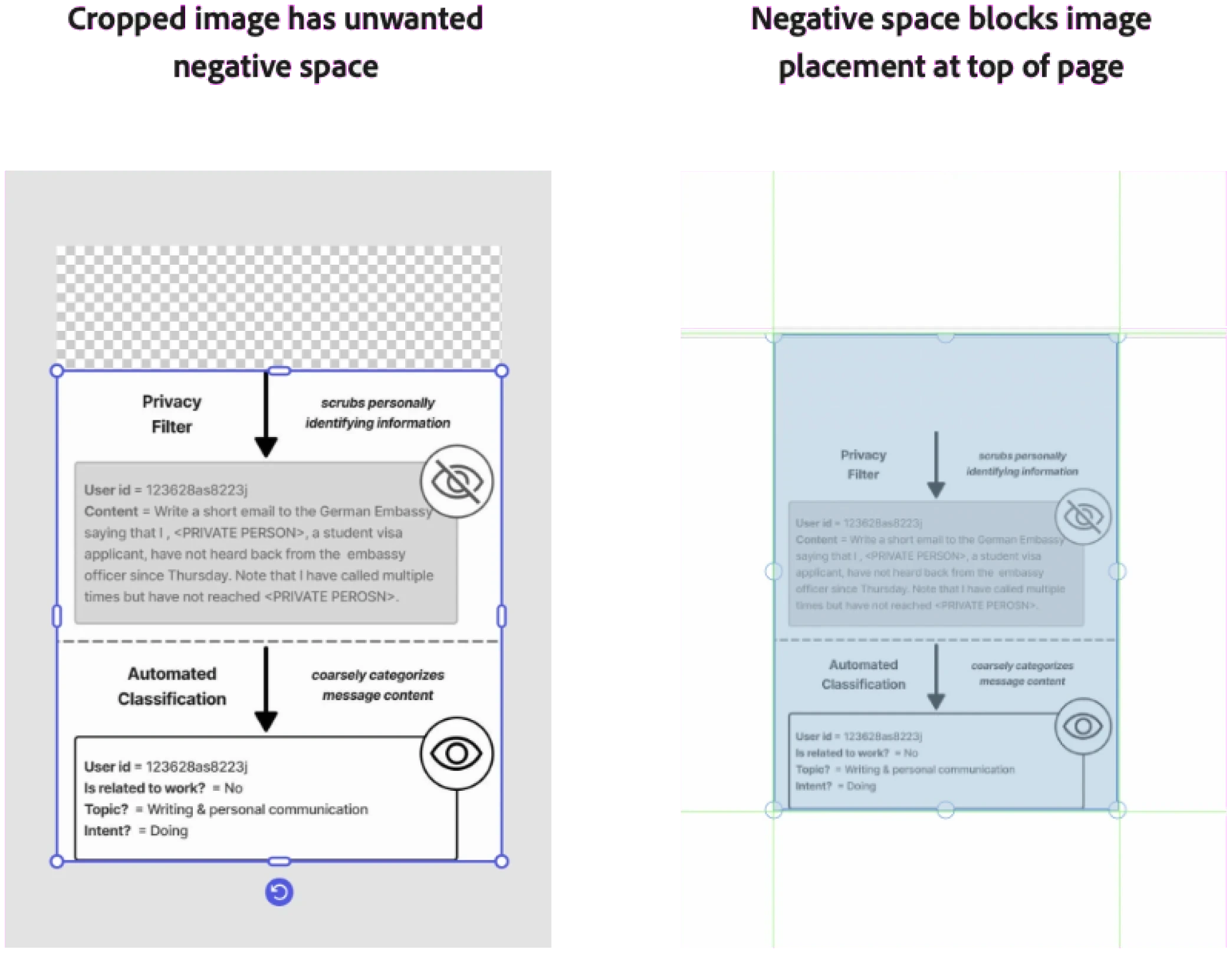
Challenge #3: A working AI tool isn't enough if it breaks the layout
The missing piece of the end-to-end workflow was applying the image back to the PDF.
Crop should resize the canvas itself
After cropping an image in the edit image module, users expect the canvas to resize too — not leave ghost space when the image goes back into the PDF. Result: users can apply the resized image inside the PDF layout, with no extra canvas after cropping.
Monetize
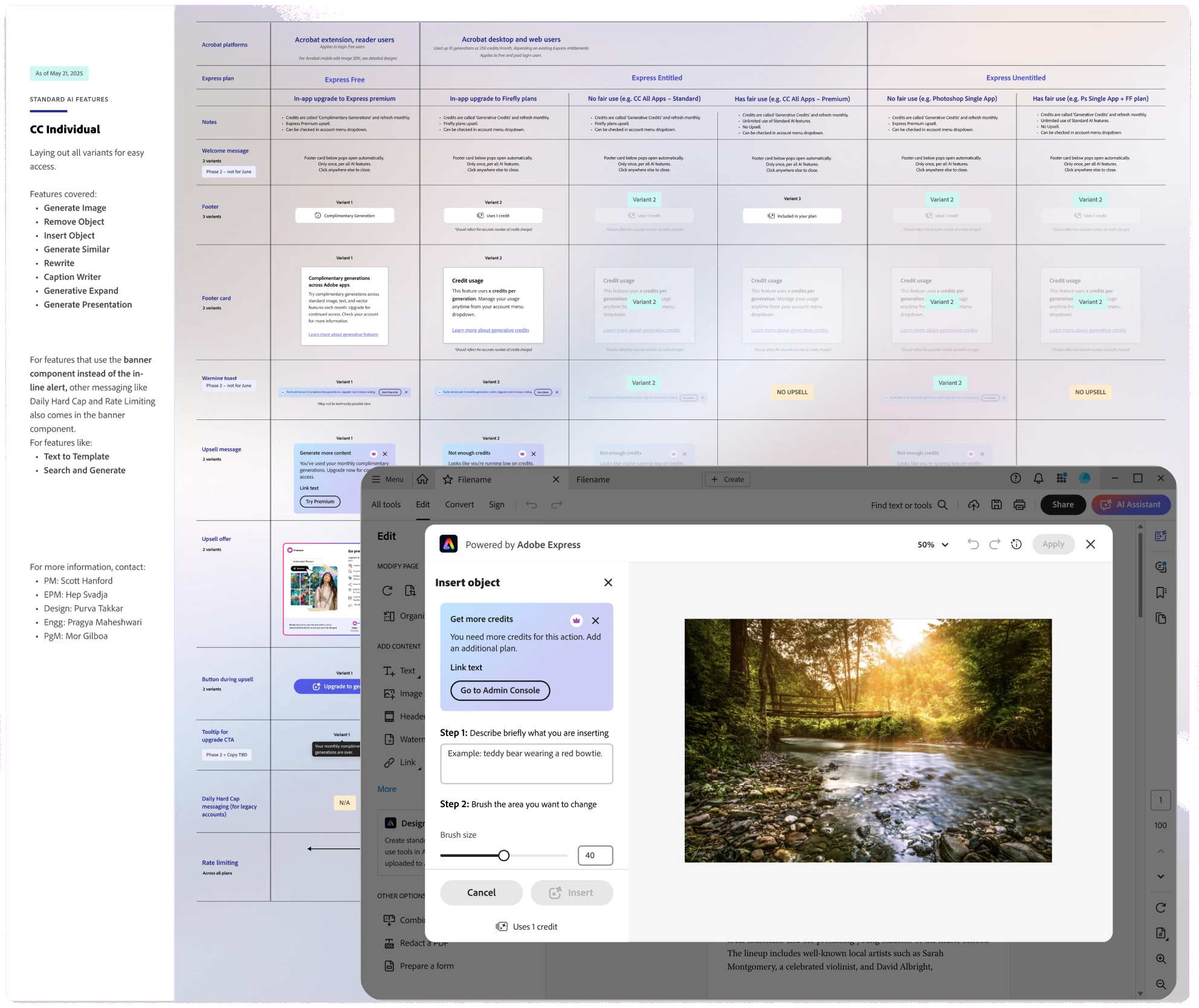
How might we monetize AI usage and unify it across Document Cloud and Creative Cloud?
I worked with design teams across products to reconcile generative modals and product plans, so AI usage could be monetized consistently across Acrobat plans, Express plans and Creative Cloud All Apps.
Scale
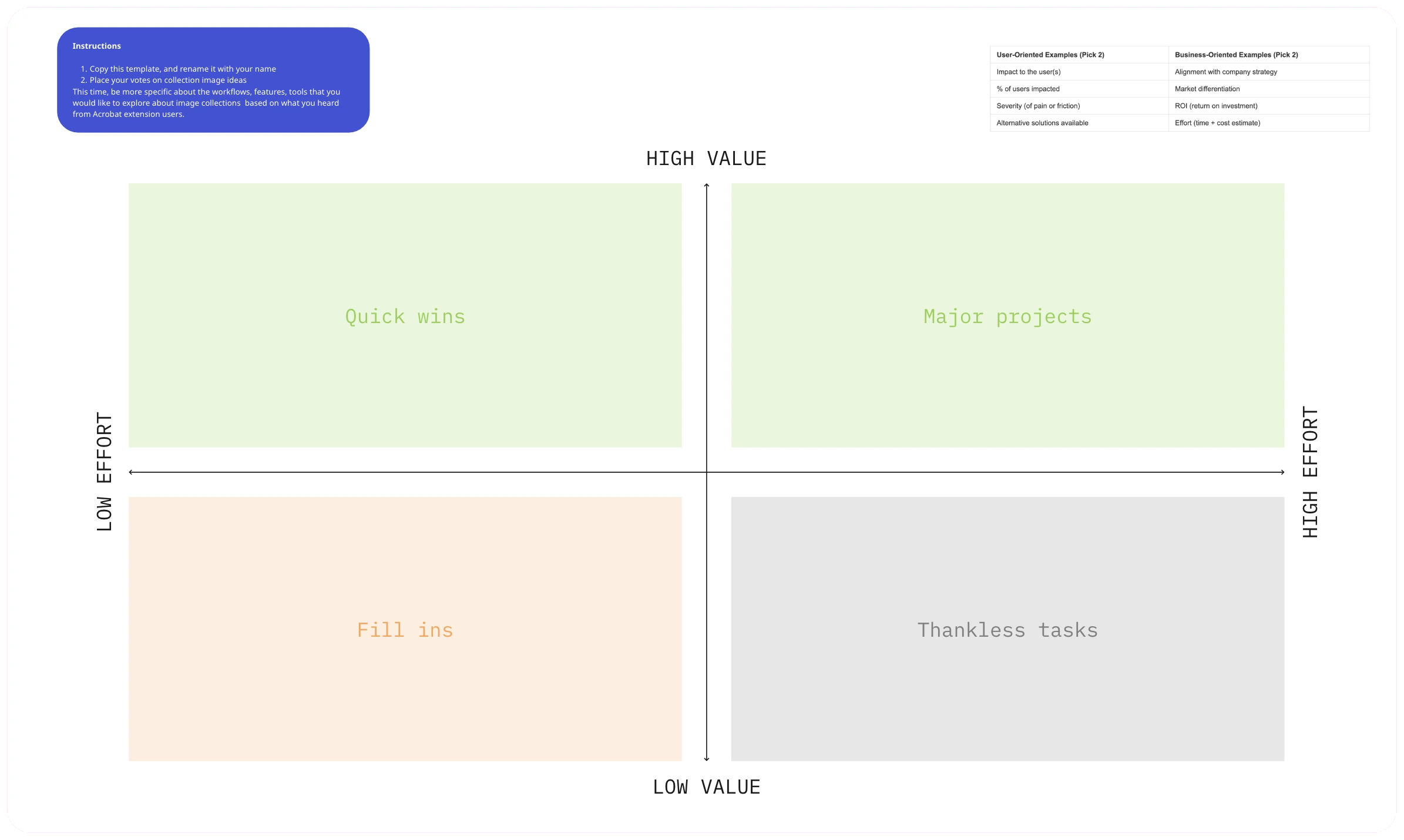
Not everything could be a priority
I used an effort/value framework with product, engineering and partner teams to separate quick wins from major projects, and to consciously prioritize work based on impact and cost.
AI-powered design deliverables
I combined AI prototypes with detailed Figma designs to quickly validate ideas, explore multiple directions and iterate — using Claude and Figma MCP, grounded in Adobe Spectrum standards, product assets and real test data.
Scale
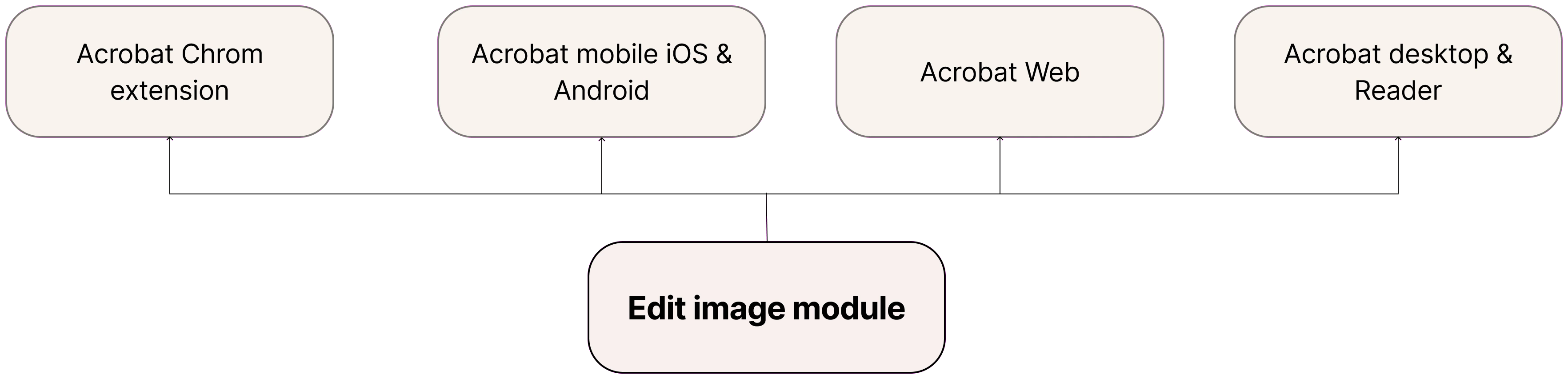
Edit image outgrew Acrobat desktop

Acrobat in the Chrome extension
I led the end-to-end product lifecycle — roadmap planning, ideation, experimentation, validation and implementation — driving a 1.5× increase in MAU.
Edit image in the Acrobat mobile app
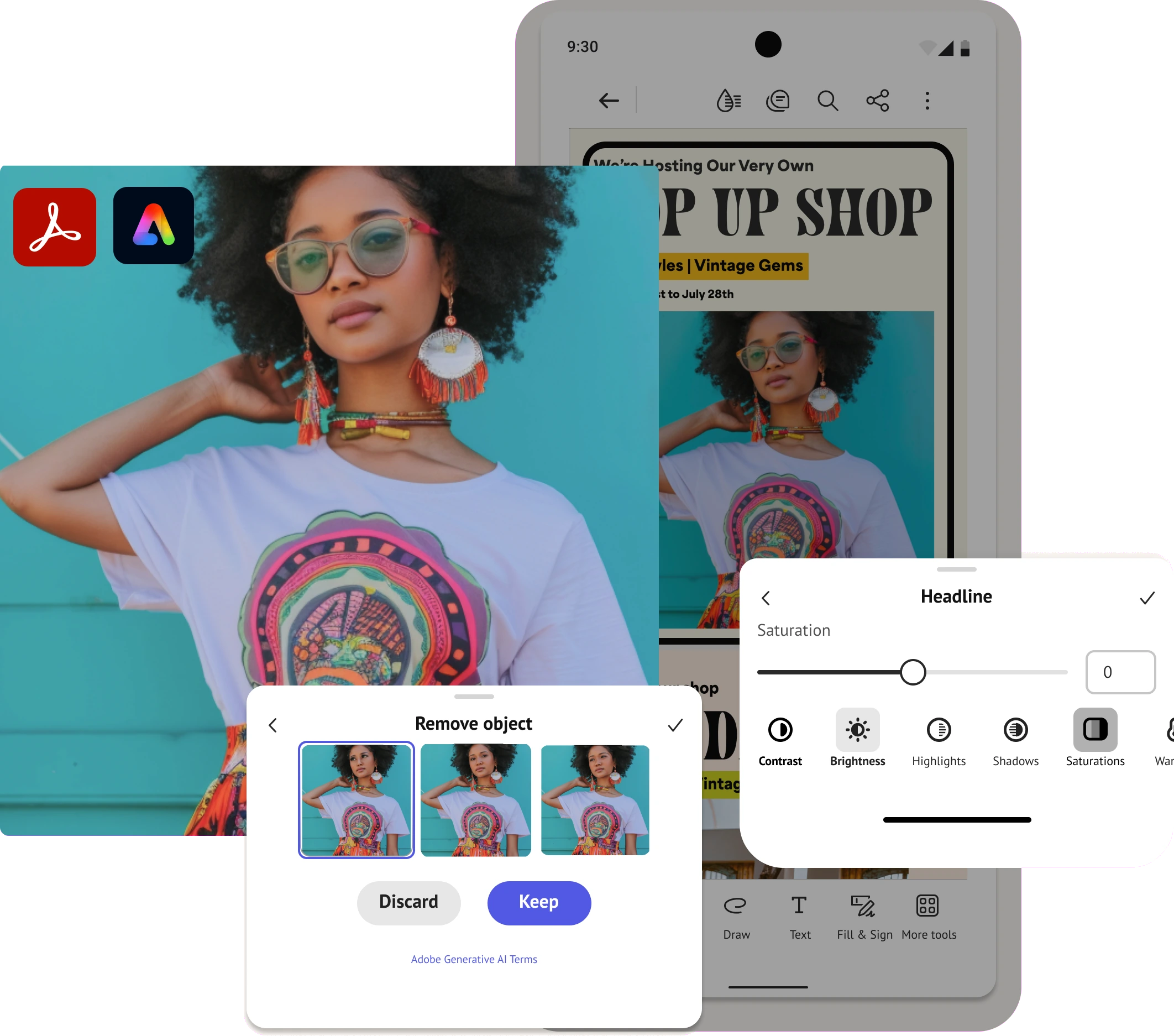
I designed the 0→1 experience that introduced the edit image module to Acrobat mobile and expanded creative use cases there.
Result: after launch, mobile became the primary growth driver for image file workflows.
Scale
Craft with accessibility in mind
I established a 0→1 accessibility design QA process, working closely with product, engineering, product equity and the design library team.

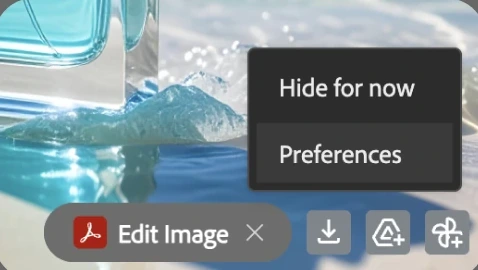
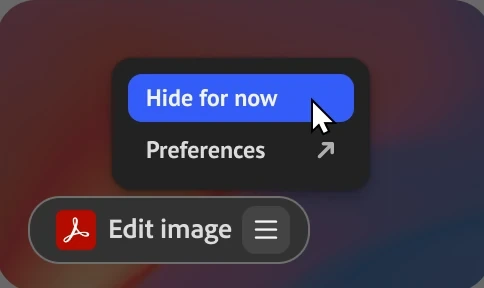
The entry point appears on images in Gmail and WhatsApp, so its menu had to meet accessibility standards wherever it showed up.
Result: after updating the components to be WCAG AA compliant, we saw a 4% increase in export rate within 2 weeks.
Outcome
10× MAU growth, and a design process built to scale it 📈
What started as a simple hand-off became a shared module across desktop, web, mobile and Chrome — designed by aligning the tech layer first, then iterating the process and experience together with 12 teams across 5 time zones.