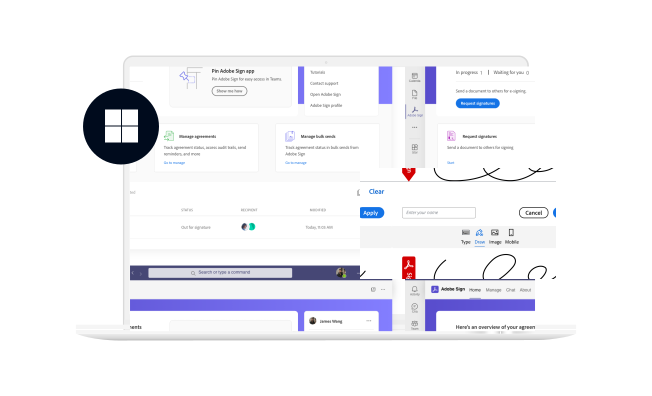
Adobe Acrobat
Protecting PDF across platforms
Led design end to end across Acrobat services. 200+ new enterprise users in private release, with a potential of 60M+ seats.
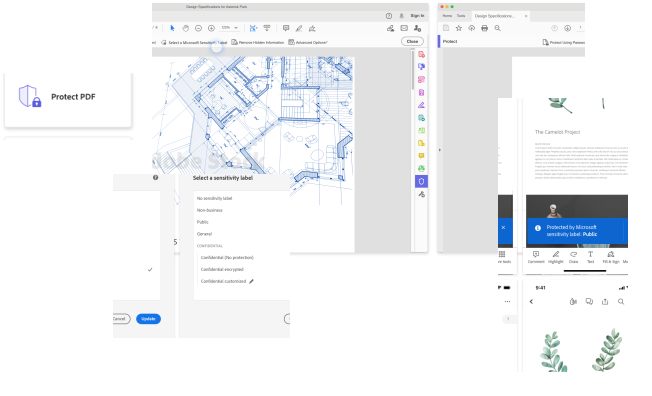
PDF is the world’s most popular business document format. It’s also the most common file type stored in SharePoint and OneDrive — and in many cases, PDF files contain sensitive information. Partnering with Microsoft, this integrated experience brings the same classification, labeling and protection from Microsoft Office files to Acrobat. The experience was later nominated as “Security ISV of the Year” by Microsoft in 2023.
My role
Lead designer, end to end
I led the design from ideation and iteration to implementation, working with internal and external stakeholders across Acrobat desktop and mobile, in both the new and classic UX frameworks.
Problem & use case
A security gap
As the most common file type stored in SharePoint and OneDrive, PDF was not covered by MPIP protection — leaving enterprise users with a broken workflow.
”My company has MPIP protection for my Word files, but I have to use another tool to make sure the encryptions are there with my PDFs.”
Business opportunity
MPIP has grown 60% year over year and commands 60 million+ seats.
With 80% of PDFs opened outside of Acrobat, this is a strategic move for Acrobat to tap into Microsoft’s knowledge workers.
Design touchpoints
Meet users where they are
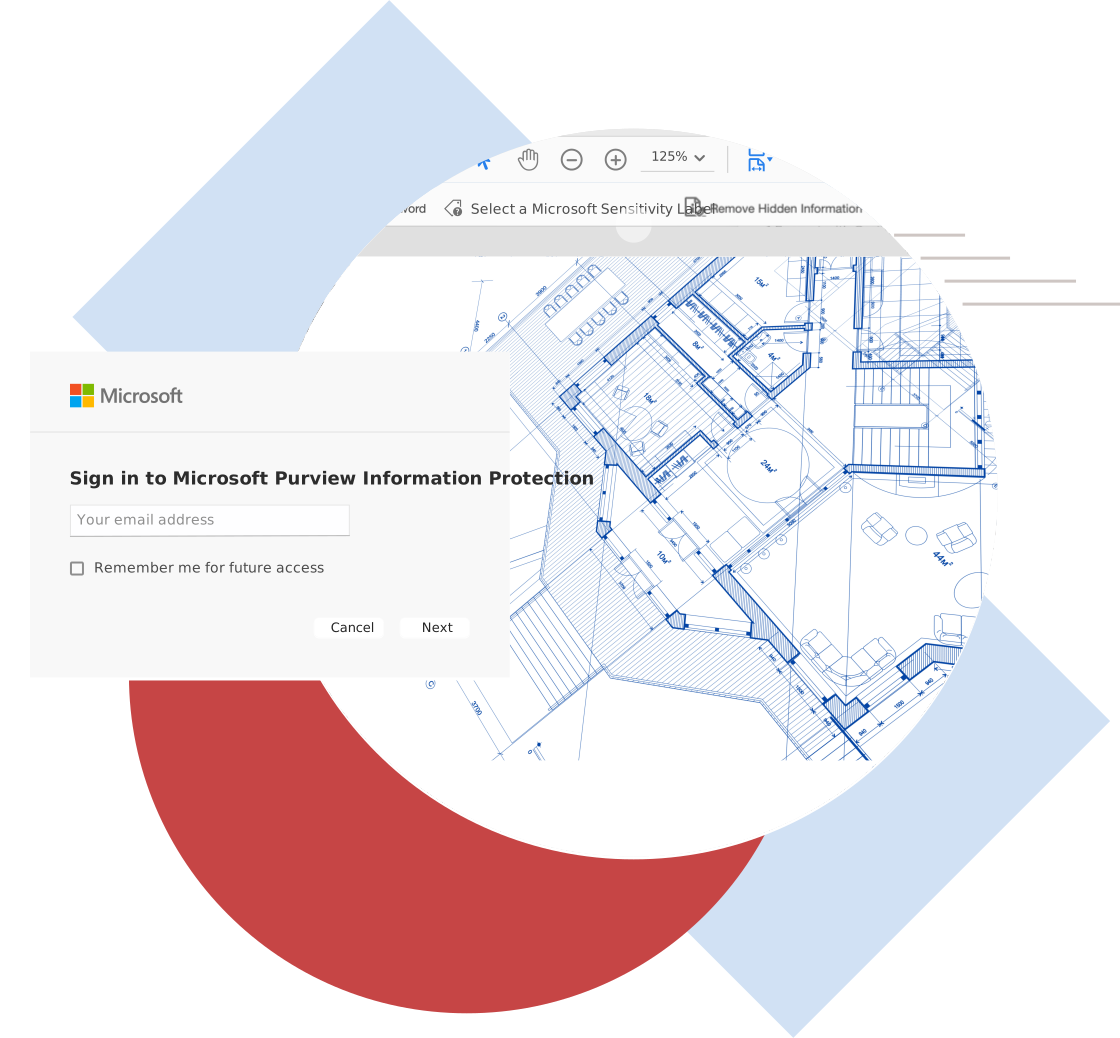
After rounds of ideation with cross-partner teams, we decided to place the entry point for this experience under the Protect PDF tool — where Acrobat users already go for any data or file security needs.
Nested under an existing tool
After signing in, entitled users can find the MPIP option alongside the other PDF protection options Acrobat offers.
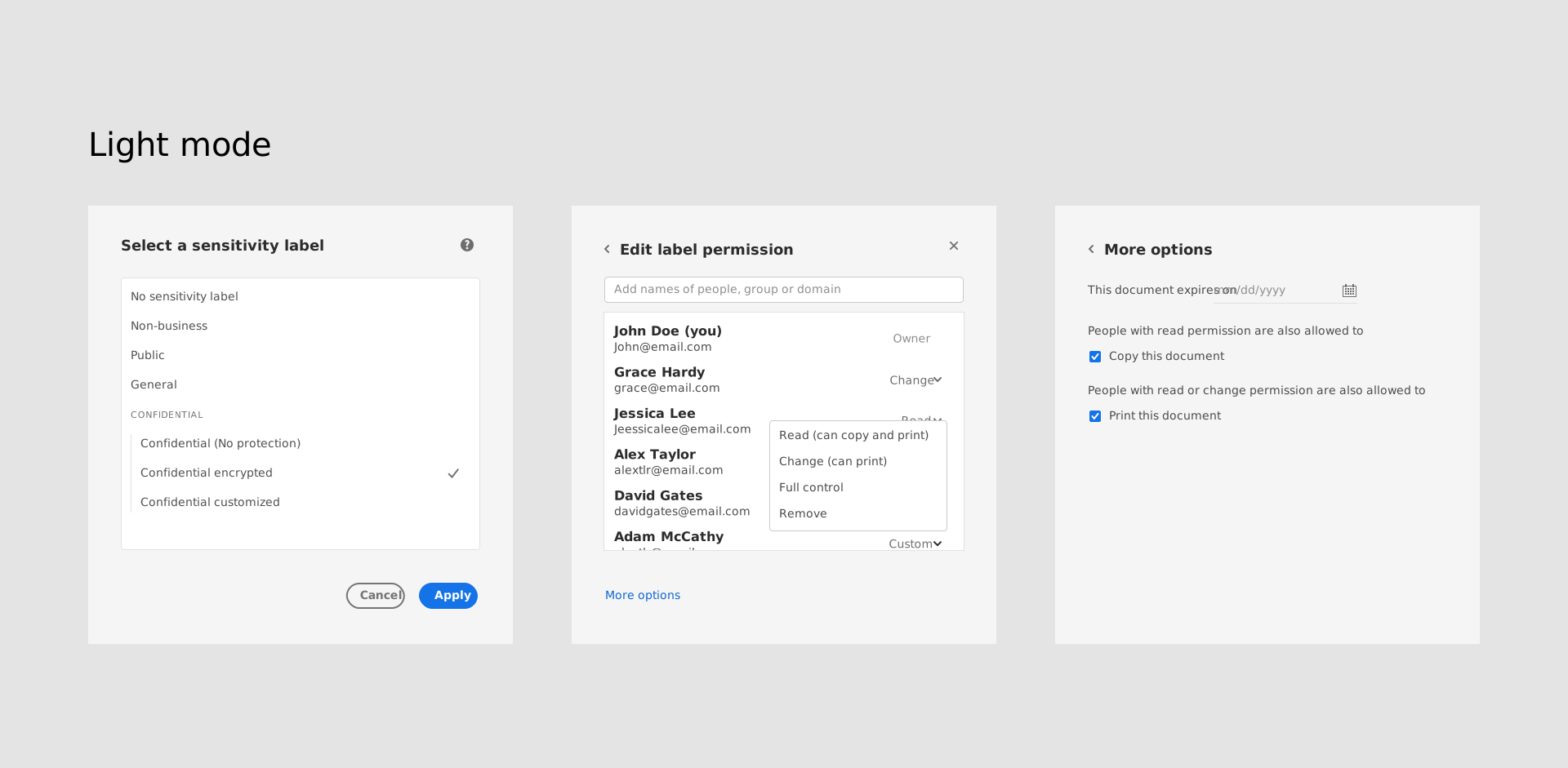
Below are some examples of how this experience is supported across dark and light mode within Acrobat.
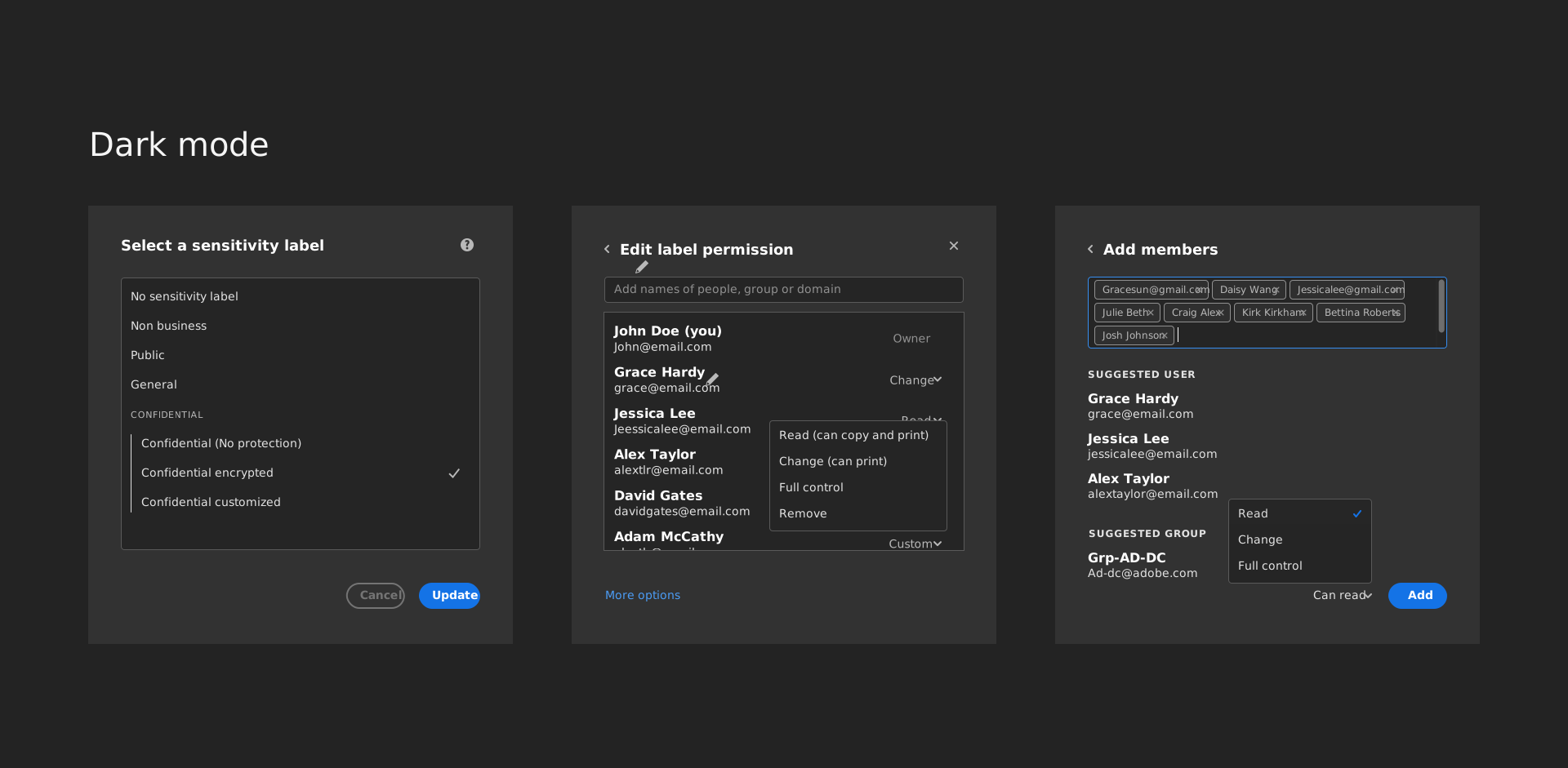
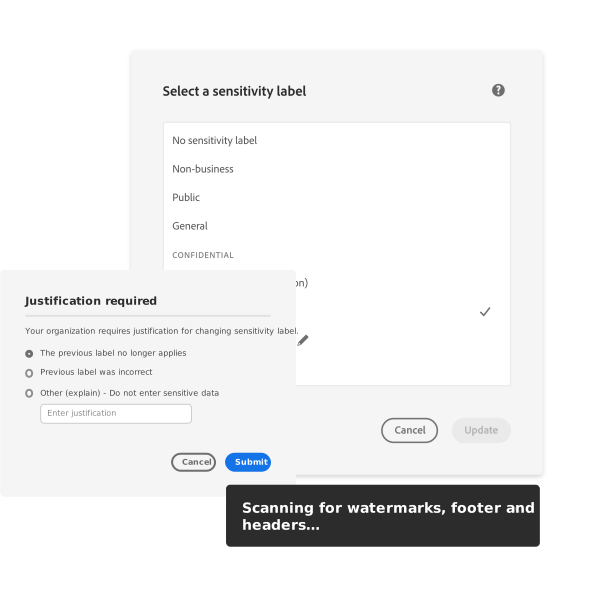
Respect established user behavior
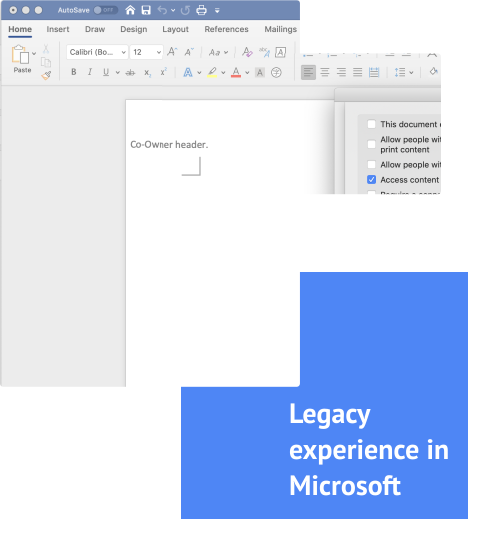
Most of our enterprise users were already familiar with the MPIP workflow in the Microsoft ecosystem, so within Acrobat we landed on an experience that feels familiar, yet refreshed for Acrobat users.
Design walkthrough
A user-first mindset
When we audited the existing experience in Microsoft products and talked to Acrobat users, it felt outdated and permission-centric rather than user-driven. After working across teams to lay out the detailed workflows, I redesigned the experience to better suit Acrobat users, with a modern look and feel.
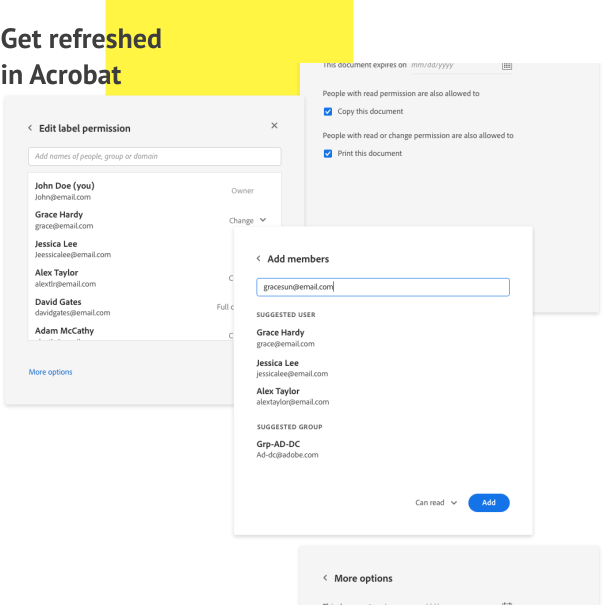
Scalable solution
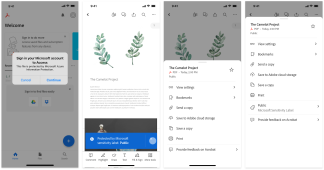
Tap across devices
To understand how this experience would carry over to smaller screens, I provided an experience framework and vision early on to start the conversation. We considered different use cases — a document’s reader, commenter, owner and co-editor — and went through multiple rounds of iteration to make sure integration features were logically and visually separated from the native experience.
Design localization
Accessible across viewers and languages
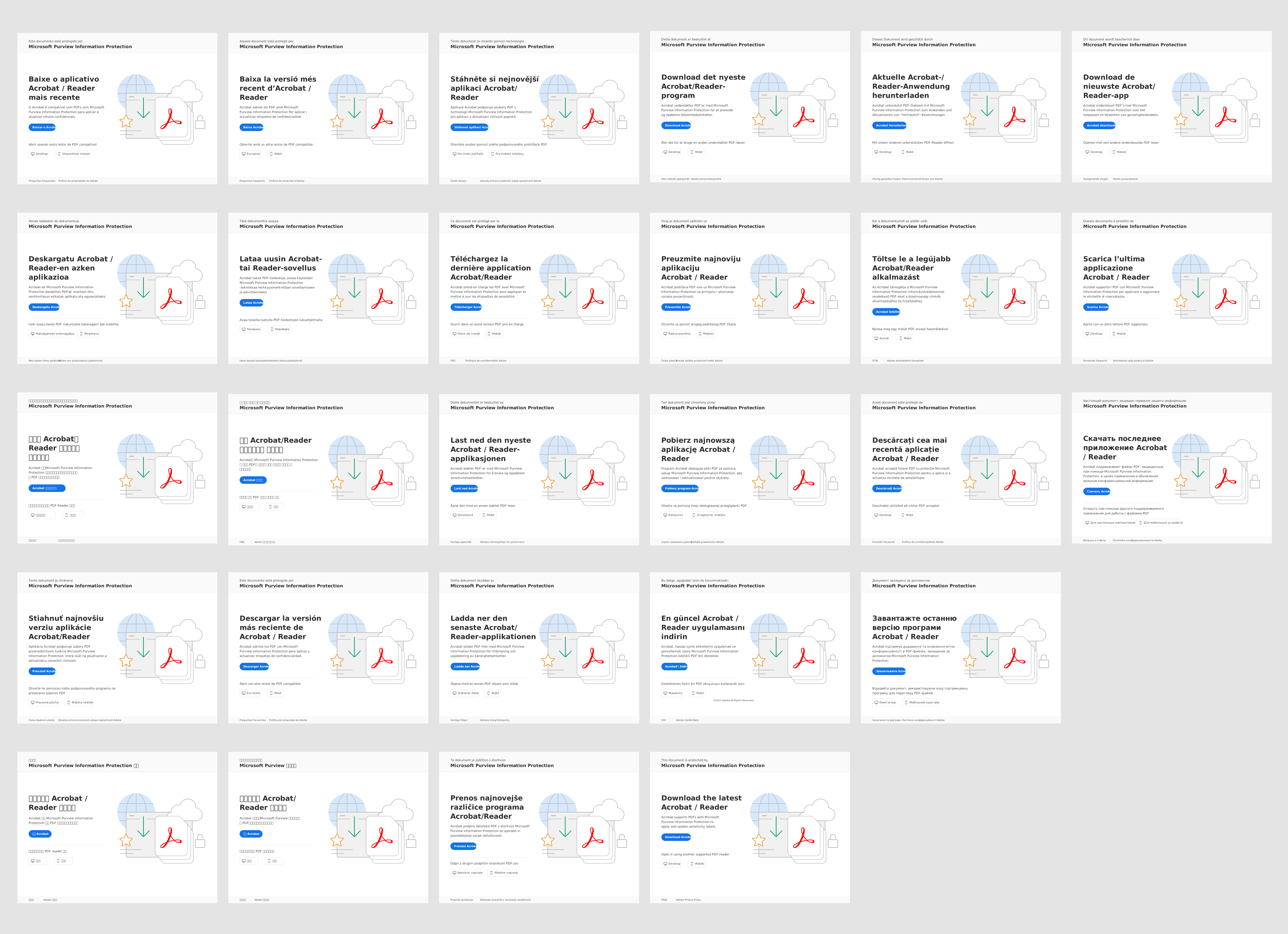
PDFs tend to be archived for a long time. One case we considered: when a label was auto-applied, or a viewer no longer supports the MPIP label, how might we help people get timely support and know what to do next?
To bridge this gap, I collaborated with the localization team and provided detailed specs for how the experience would be localized into multiple languages.

Unique challenge
Dancing within the pace
How do you design and lead a good partnership experience? We started from a dated experience that had been out with enterprise customers for a while, and needed to work with different engineering and product teams across platforms. After rounds of iteration, the experience launched at Microsoft Ignite 2022 and has continued to improve since.
Have a rationalized design POV
Designing a partnership experience often means double the constraints: user expectations, feasibility and timelines from both products. It’s important for the lead designer to hold a solid point of view grounded in our understanding of users and limitations. I really enjoyed collaborating with engineering, product, marketing and customer support — internally and externally — to build a clean experience for users.
Outreach to the design community
While I designed this project, our design team was also revamping the entire Acrobat experience. To keep this work scalable through that transition, I worked closely with multiple design teams so every touchpoint, component and workflow would scale in both the classic and modern frameworks.
Raise the quality bar end to end
The project started with a quick sync while the product team was still drafting roadmaps. As we went deeper, I brought in more stakeholders to align on the overall experience and release strategy. Across three release phases, I incorporated customer feedback so the end-to-end experience always reflected customers’ needs.